Connect GradeTheBid To Claude. Ask Claude about your proposals, grades, and deadlines in plain words, with no key to copy.
Once this is set up, you can ask Claude things like "What bids are due this week?" or "What should I fix first on my last proposal?" Claude can read. It cannot change anything, run a grade, or use up your proposals.
Claude moves its menus from time to time. These steps were checked November 1, 2026.
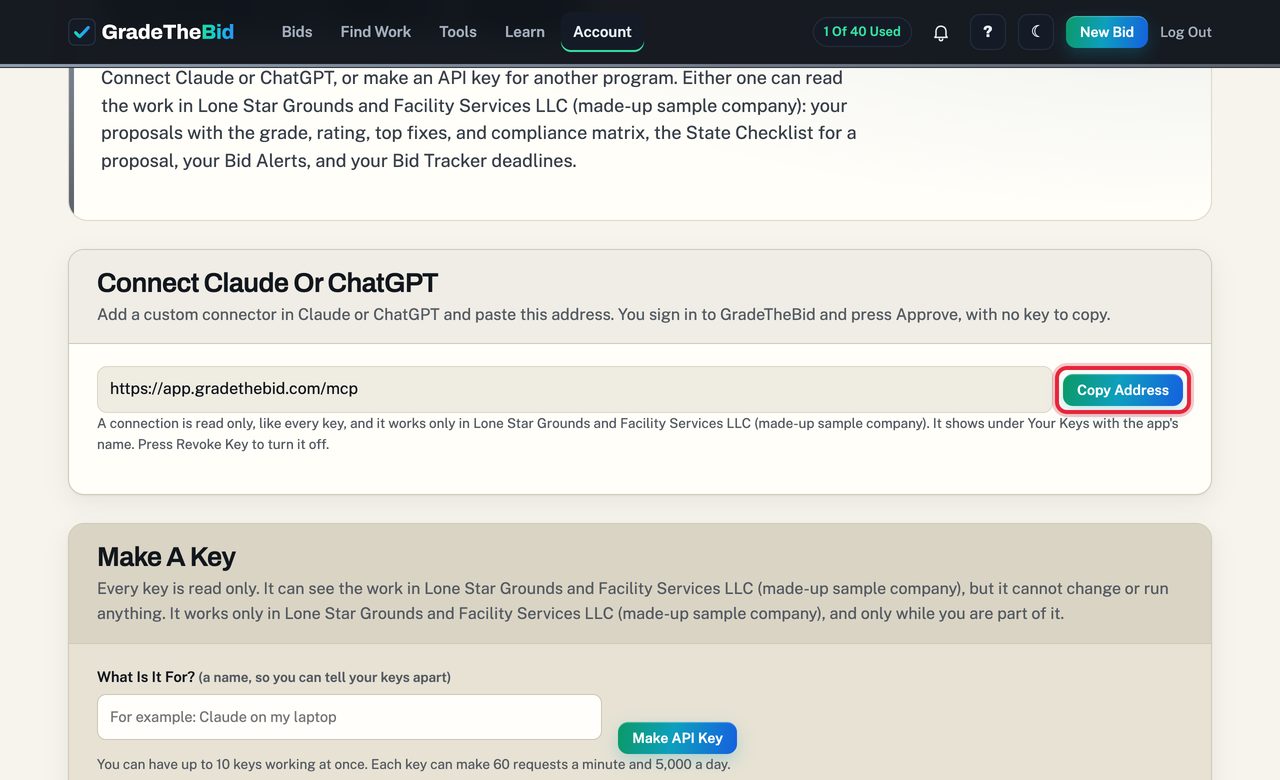
Step 1: Copy Your Address
In GradeTheBid, open Account, open Settings, and press Connect Other Apps. Press Copy Address.
Step 2: Add The Connector In Claude
In Claude, open Customize, then Connectors. Click + Add, then Add Custom Connector.
Type GradeTheBid for the name. Paste your address as the server URL. Click Continue.
On the next screens, pick Sign In Now and Use Claude's Published Identity, then click Add. If you see one short form instead, fill in the name and the address, leave Advanced Settings alone, and add it.
On a Team or Enterprise plan, an Owner adds it first in Organization Settings, then Connectors. Then each person finds GradeTheBid under Connectors and clicks Connect.
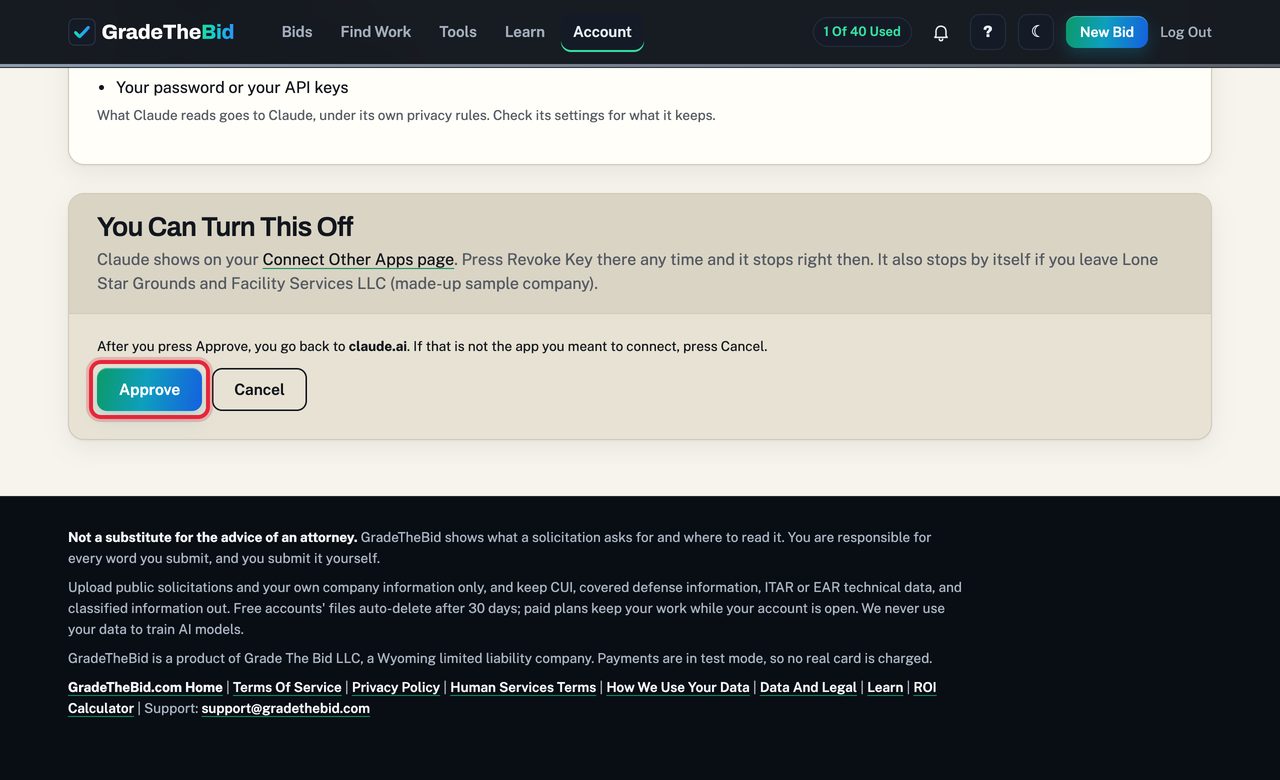
Step 3: Sign In And Press Approve
Claude opens GradeTheBid. Log in, read what it can and cannot see, and press Approve.
Step 4: Ask Claude
In a chat, press +, then Connectors, and turn GradeTheBid on. Then ask: "List my proposals in GradeTheBid."
Turn It Off Any Time
Open Connect Other Apps in GradeTheBid and press Revoke Key next to Claude. It stops right then.
What Claude reads goes to Claude, under Claude's own privacy rules. It never sees your uploaded files, your drafts, your Company Profile text, or your password.